

If you want to feel accomplished this new year, knock out this goal in 5 minutes.
Your digital workspace could probably use a refresh, and it doesn’t take much. January is all about refining routines, and that includes how your tech runs behind the scenes.
These 6 moves that are tiny but mighty. They’ll help your computer run smoother, make daily tasks easier, and even earn you some silent applause from your tech director. Best of all? You can do them right now, during your planning period or with a fresh cup of coffee.
Let’s hit reset.
1. Clear Your Cookies and Cache
Web browsers store temporary files that can build up over time, leading to slower performance, login issues, or platforms that don’t load correctly. Clearing this data gives your browser a clean slate.
To do this:
In Chrome, click the three dots (⋮) in the upper right corner → Settings → Privacy and Security → Clear browsing data
Select “Cookies and other site data” and “Cached images and files,” then click Clear data
This is a reliable first step when online tools behave unexpectedly.
2. Restart Your Computer
Many software and system updates require a full restart to take effect. Simply closing your laptop or putting it to sleep won’t accomplish this.
To do this:
- On Windows: Open the Start menu and select Restart
- On a Mac: Click the Apple icon in the top left corner and choose Restart
If your device hasn’t restarted in weeks, your apps are probably gasping for air.
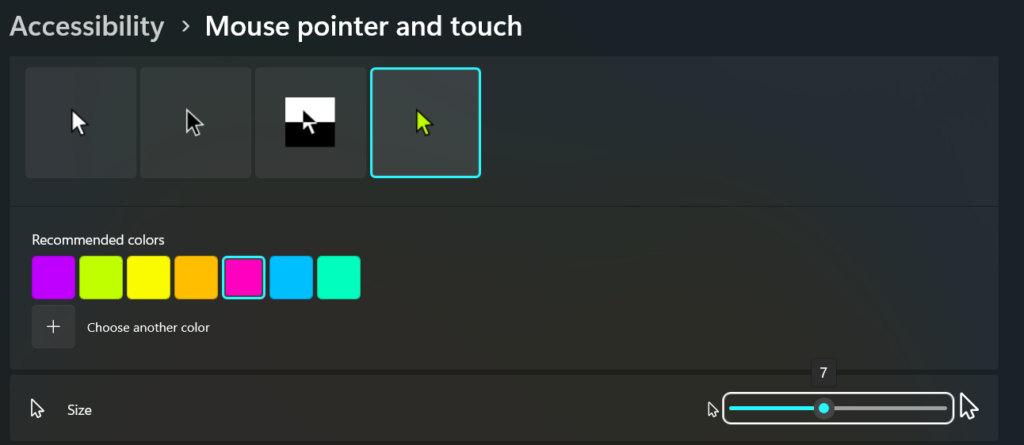
3. Increase the Visibility of Your Mouse Pointer
When projecting your screen or modeling digital tasks for students, a small pointer can be difficult for the class to follow. Increasing the size or changing the color can make your demonstrations more accessible and easier to follow.
To do this:
- On Windows: Go to Settings → Bluetooth & Devices → Mouse → Additional mouse settings → Pointer Options
- On a Mac: Open System Settings → Accessibility → Display → Adjust Pointer size and color
This simple adjustment can improve student engagement and support learners with visual needs.
4. Install Pending Updates
Operating systems and web browsers frequently release updates to enhance security and performance. Running these updates helps your device operate efficiently and prevents compatibility issues with classroom tools.
To do this:
- For Chrome: Click the three dots (⋮) → Help → About Google Chrome → Chrome will automatically check for updates
- For Windows: Open Settings → Windows Update
- For Mac: Go to System Settings → General → Software Update
Consider scheduling updates before the weekend to avoid interruptions during instructional time.
5. Pin Frequently Used Browser Tabs
If you use the same digital tools daily—such as your LMS, gradebook, or lesson planner—pinning these tabs in your browser ensures quick access and prevents accidental closure.
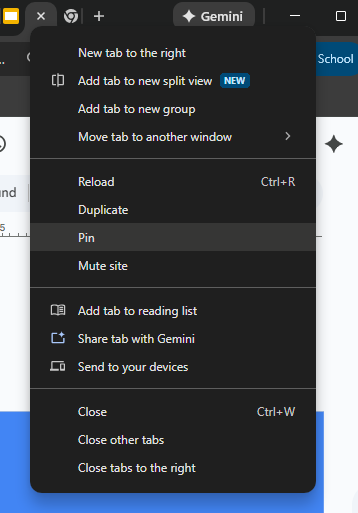
To do this:
Right-click on the browser tab and select Pin. Pinned tabs stay in place and reopen automatically each time you launch your browser.
6. Free Up Storage Space
A cluttered Downloads folder or desktop can slow down your device, especially on laptops with limited storage. Periodically clearing unused files helps maintain optimal system performance.
To do this:
Open your Downloads or Desktop folder → Sort by size or date → Delete unneeded files or move them to cloud storage such as Google Drive
Don’t forget to empty the Trash or Recycle Bin afterward.

Bonus Tip: Schedule a Monthly Tech Reset
Set a 15-minute recurring calendar reminder once a month to go through this list. You’ll stay ahead of problems, feel more in control, and keep your device running like a champ.